Create and edit images with GPT Image 2
Describe a new image or add references for an edit. Set your quality, resolution and framing, then review the result and image history beside the tool.
Give your visual idea a clear brief
Use specific instructions and references to guide the image.
Create from a description
Describe the subject, setting, lighting and layout. Start with a focused idea and refine it after reviewing the result.
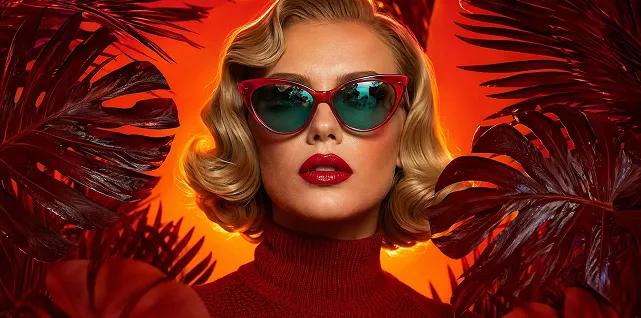
Include words in the composition
Quote the text you want and describe where it belongs. Check spelling and legibility in the generated image.

Edit from image references
Add a reference, explain the change and name the details to keep. Review the output for unintended changes.
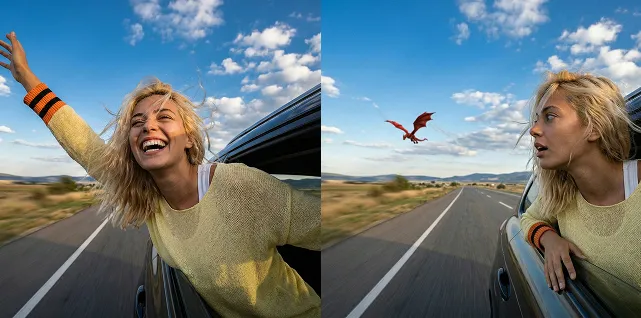
Choose quality and size
Use the quality, resolution and ratio options shown in the tool. Check the credit quote as you compare settings.
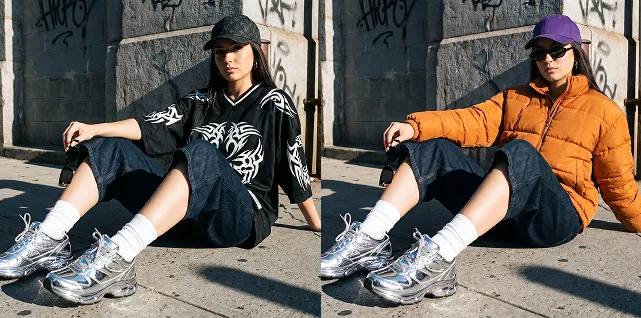
Keep the next revision close
Work from a prompt, a reference or a previous result.
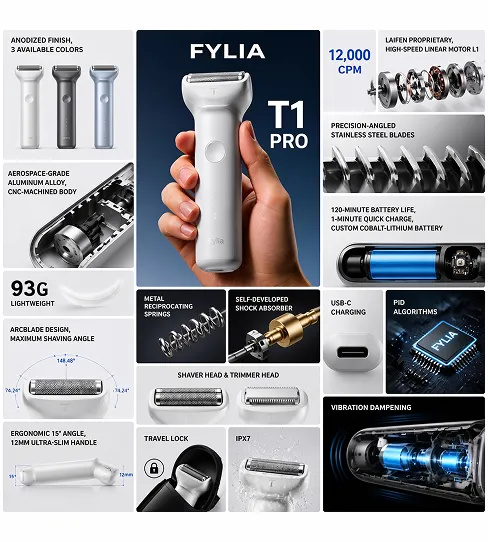
Keep your direction explicit
Specify the arrangement, colors and materials that matter most so you can judge each result against your brief.
Compare settings before submitting
Review the cost of the selected quality and resolution. Generation time varies with the request and model queue.
Refine a specific detail
Reuse your inputs and change the relevant instruction when you want to try a different background, object or composition.
Review images in one place
Preview and download the current image, or open a history item’s details to inspect its prompt and settings.
Images for your next creative project
Start with a brief you can assess visually.
Posters and campaign ideas
Explore a headline, palette and layout for a poster or promotional concept. Proofread generated text before use.
Product compositions
Place a product reference in a new setting or try another material and lighting direction. Check that product details remain suitable.
Scene and character concepts
Develop a setting, outfit or visual mood for a storyboard, illustration or game concept.
Visual explanations
Draft a labeled illustration or diagram concept. Verify all factual information and labels before sharing.
Create with GPT Image 2
Describe your idea, set the image options, and inspect the finished result.
- Step 1
Describe your idea
Write the subject, composition and any text you want in the image. Add reference images when your idea calls for an edit.
- Step 2
Set your image options
GPT Image 2 is selected for this tool. Choose quality, resolution and framing, then review the credit quote and generate.
- Step 3
Inspect and save
Open your finished creation and check the details and text. Download it or reuse its inputs to try another version.
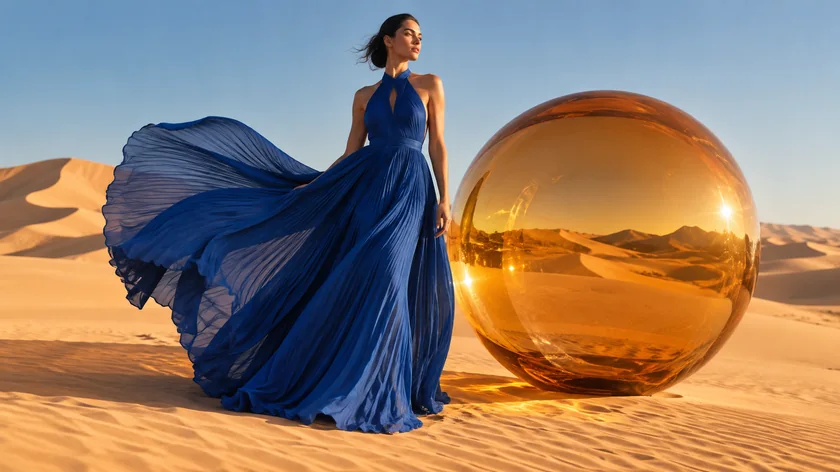
Workflow illustrations with example inputs and results. Options vary by model.
GPT Image 2 FAQ
Yes. You can start with a text prompt or add reference images and describe the edit you want. This page keeps GPT Image 2 selected.
Text can contain spelling or layout errors. Quote your intended wording, keep the layout clear and proofread the result before publishing.
Use the quality, resolution and aspect ratio options in the panel. The quote updates for the combination you select.
Treat them as visual drafts. Check coordinates, measurements, labels and other factual details against a reliable source before use.
Your result appears beside the tool after generation. Sign in to browse Image History; opening an earlier item shows its details without replacing your current result or draft. Choose Reuse to restore its inputs.