GPT Image 2.6 for product visuals, posters and edits
Create images from a written brief or refine your own references with GPT Image 2.6 Sunburst. Choose an output format and the available quality and size settings, then review credits before generating. Start with a prompt below and adapt it to your subject. Your results and Image History stay in this workspace.
Read OpenAI’s Images 2.6 announcement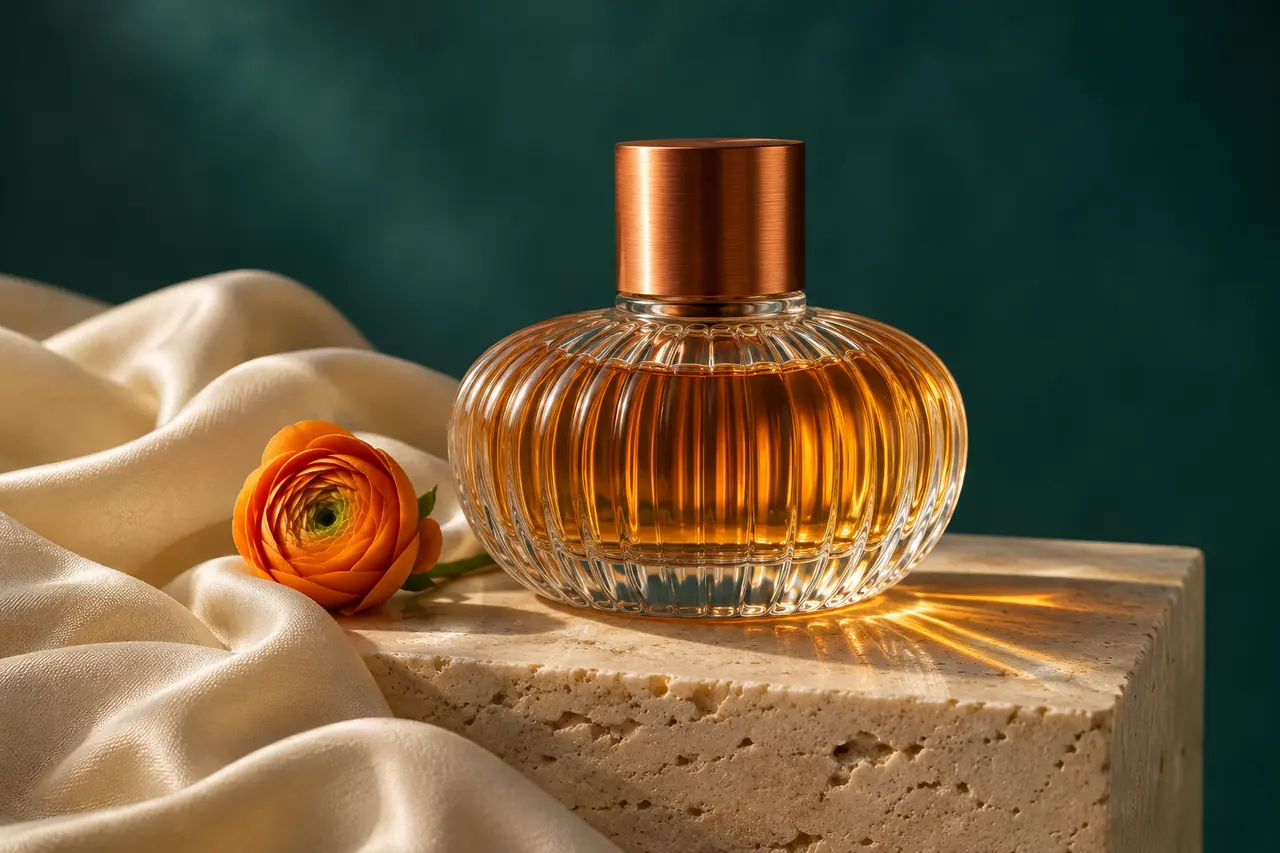
Photograph a ribbed glass perfume bottle filled with amber liquid and topped with a copper cap. Place it on pale travertine beside folded ivory silk and an orange flower, against a deep teal backdrop. Warm directional sunlight, realistic refractions and fabric texture, a clean product silhouette, generous breathing room. No lettering or watermark.
Creative AI illustrations, not verified model outputs. The sample GIF was assembled from a sprite sheet.
Three ways to create with GPT Image 2.6
Build a scene around your product
Give GPT Image 2.6 a concrete subject, then describe its materials, setting and light. For the perfume example, ribbed glass, a copper cap and ivory silk create distinct surfaces to resolve. Leave space around the bottle for a product page or launch email. Change one detail per version so you can compare the result against the same brief.
Make the headline part of the composition
Use GPT Image 2.6 to explore a poster with a clear reading order. Put short required wording in quotation marks, identify the subject and ask for useful margins. A portrait campaign needs a different crop from a square product tile. Check every letter, label and small detail at delivery size before publishing the finished artwork.
Keep a reference at the center of an edit
Start a GPT Image 2.6 edit with your own product, character or room. List the details to preserve separately from the change: keep the chair’s shape and fabric, but replace the setting. Compare each result with the source before continuing. Image History lets you inspect earlier work; choose Reuse to bring its saved inputs back into the form.
Direct reference edits with GPT Image 2.6
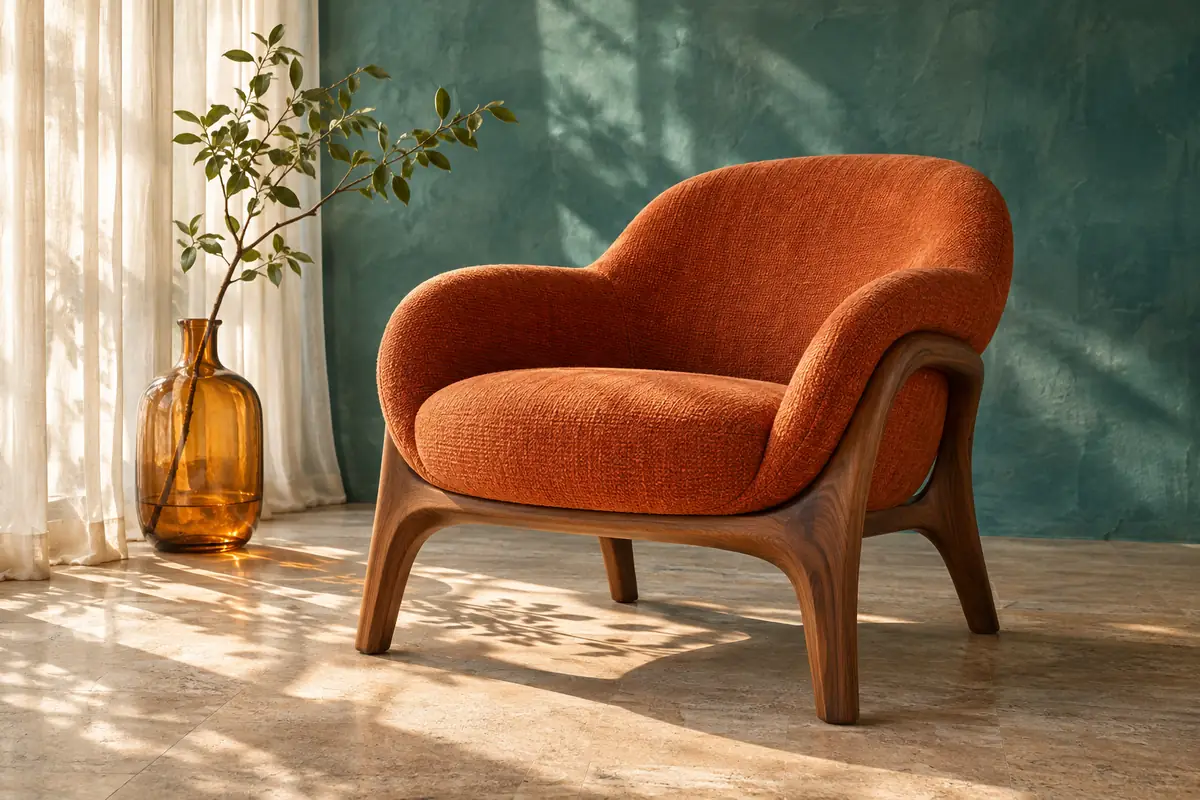
A clear reference gives GPT Image 2.6 a starting point for an edit. Explain which image defines the subject and which supplies the palette or environment. For a furniture scene, specify the chair’s silhouette, upholstery and viewing angle before describing the room. Keep the prompt consistent when testing a different background.
Ask GPT Image 2.6 for a sunlit reading room, soft window shadows and a quiet wall behind the chair. Then inspect edges, proportions and material boundaries. Generative editing can reinterpret important features, so review the result rather than assuming every original detail will remain unchanged.
Plan a mascot loop with GPT Image 2.6
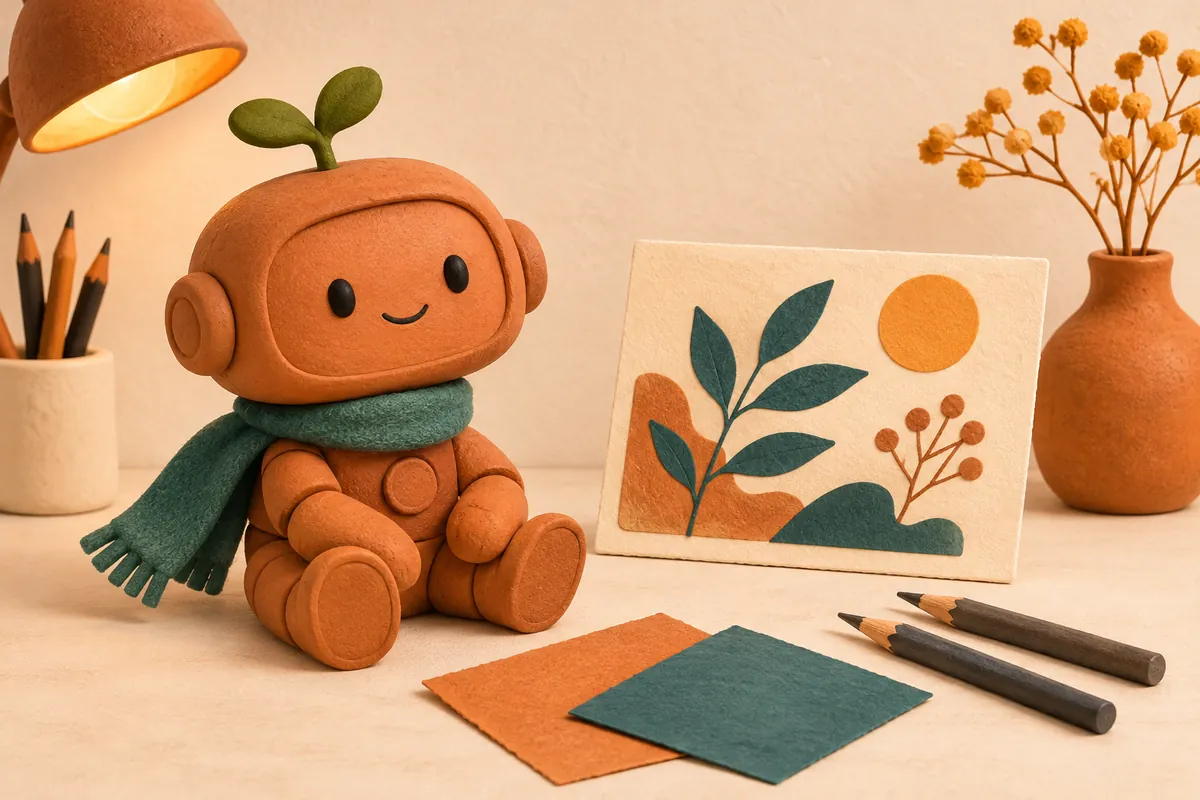
The sample robot uses a small wave and a fixed camera. Its prompt asks for six equal square frames in a three column, two row sprite sheet on a 3:2 canvas. Each pose keeps the same character, lighting and background, with the last frame returning to the first.
The sample above was assembled from a sprite sheet: choose PNG to try that method, then join the six frames in a GIF editor. For a direct GPT Image 2.6 GIF request, choose GIF and describe a short movement with a fixed camera. The canvas is set automatically here. Review the movement and loop before publishing.
Choose a GPT Image 2.6 output format for the handoff
Select PNG, JPEG, WebP, GIF or SVG in Output format before generating; PNG is selected by default. Your choice accompanies the generation request. For GPT Image 2.6 product photos or illustrated campaigns, decide the intended destination and aspect ratio first, then choose the file format your publishing workflow accepts.
PNG supports a lossless image workflow, JPEG suits photographs and WebP is useful for web delivery. GIF is also available as an output format. SVG is available for text prompts without reference images; selecting it does not guarantee editable layers or print ready artwork. Inspect the delivered file before using it in production.
How to use GPT Image 2.6
- Step 1
Write the brief
Describe the subject, composition, materials and light for GPT Image 2.6. For an edit, upload your own references and name the details to preserve. Using an example fills the prompt; it does not upload its artwork or start a generation.
- Step 2
Choose settings and review credits
Choose an output format, with PNG selected by default, then adjust the available quality and size settings. GPT Image 2.6 shows the current credits on the generate button. Sign in and check that your balance covers this charge before submitting one image.
- Step 3
Review, download and refine
Check the GPT Image 2.6 result for lettering, edges and crop. Open earlier creations in Image History without replacing your draft. Choose Reuse to restore saved inputs, and download approved work before its retention period ends.
GPT Image 2.6 questions, answered
This page uses GPT Image 2.6 Sunburst for text to image generation and reference edits. The model is fixed to Sunburst. You can create product scenes, posters, illustrations and sprite sheets while managing settings, results and history in the same workspace.
Choose PNG, JPEG, WebP, GIF or SVG; PNG is the default. Your choice is included in the generation request. For a GIF, describe a short movement and review the resulting loop. The sample here was assembled from a sprite sheet. SVG is available only without reference images and does not promise editable layers. Check the delivered file against your intended use.
Upload up to 16 JPEG, PNG or WebP images, each up to 20 MB. Explain each reference’s role and the details to preserve. Only upload material you have permission to use. Reference editing interprets your instructions and sources; it does not guarantee identical subjects or unchanged pixels.
GPT Image 2.6 offers Low, Medium, High, Xhigh and Max quality. PNG, JPEG and WebP support 1K, 2K and 4K tiers with 15 aspect ratios; GIF uses automatic sizing here. The 4K tier uses a pixel budget: 16:9 can be 3840 × 2160, while a square is 2880 × 2880. Higher settings do not guarantee correct text or greater fidelity.
The generate button shows the fixed charge for one image with your current settings and reference count. Credits are reserved when the task is accepted and consumed when its result is saved. Changing output format, quality, resolution or references updates the quote before submission. An accepted task has no additional charge.
Eligible new accounts receive 20 registration credits, and daily check in provides 20. The registration gift alone does not cover the starting GPT Image 2.6 quote. Compare your balance with the charge shown. Free generations are public and exports include a watermark by default; eligible paid accounts can turn these off.
Reserved credits return when a task is confirmed to have failed. Closing the browser or reaching a client timeout does not confirm failure or create another task. Reopen your GPT Image 2.6 creation to check its status. The Refund Policy explains generation failures and purchase refunds.
GPT Image 2.6 results and uploads are retained for 10 days on free accounts and 180 days on paid accounts. You can inspect available creations and reuse saved inputs in Image History. Download approved images and sprite sheets before retention ends. The Privacy Policy describes data handling.