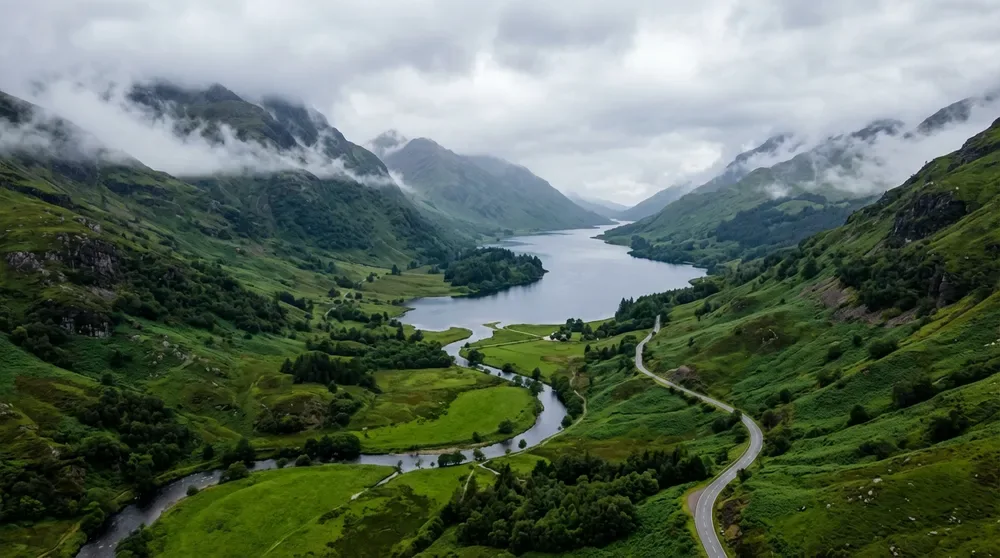
Detailed scenes from a simple idea
Describe the subject, lighting and composition. Nano Banana 2 can create scenes with natural textures and atmosphere, from a quiet landscape to an imaginative illustration.
Turn a description into an image, or take a reference in a new direction. Google’s Gemini 3.1 Flash Image brings detailed image creation and editing to Paevon AI, with your prompt, settings and results in one workspace.
Explore photography, illustrated stories and designs with text using Nano Banana 2.
Describe the subject, lighting and composition. Nano Banana 2 can create scenes with natural textures and atmosphere, from a quiet landscape to an imaginative illustration.
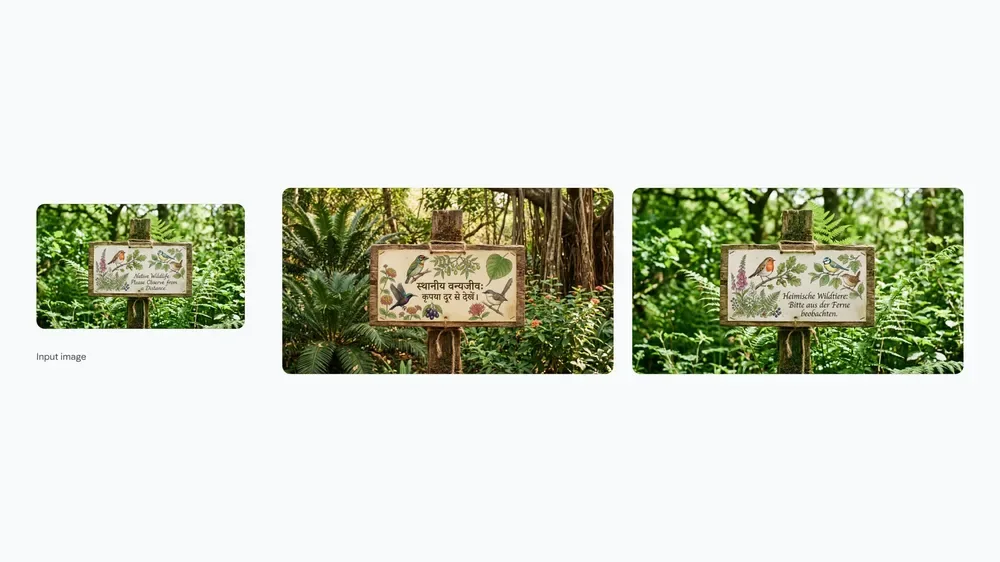
Explore posters, labels and translated designs with improved text rendering. Give the exact wording and language, then check spelling and layout in your result.
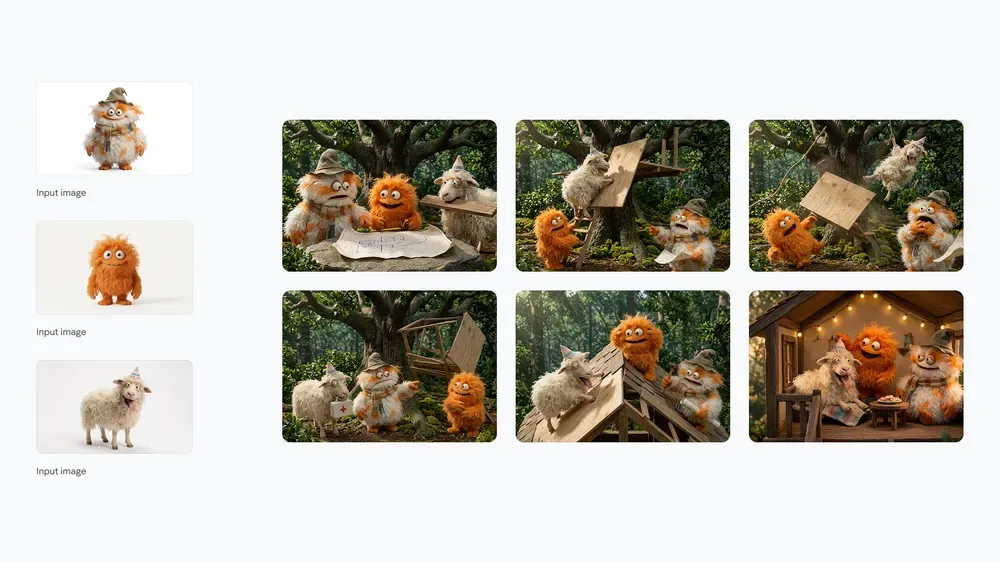
Use references to carry a character’s appearance into a new setting. Describe what should stay consistent while changing the action, background or visual style.
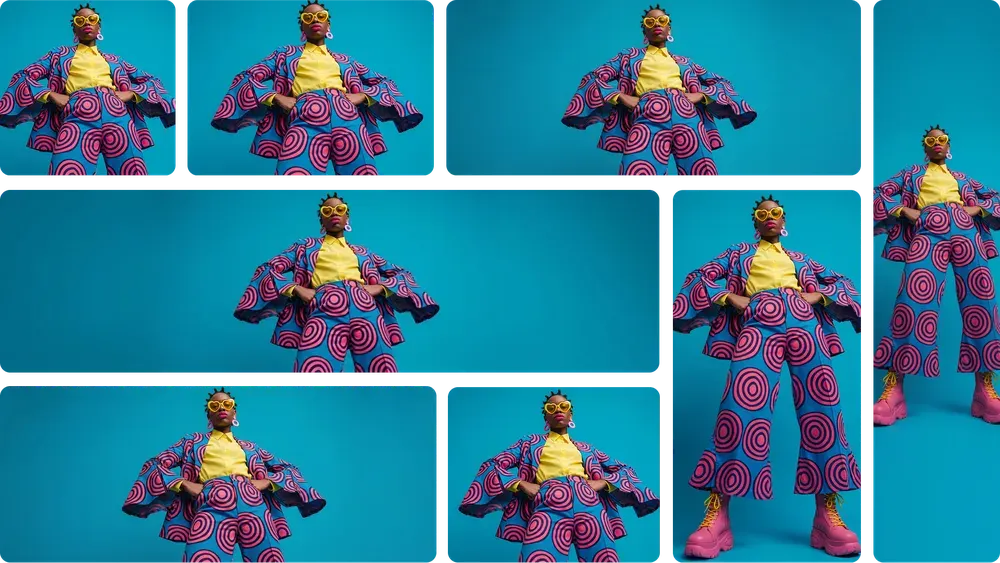
Choose square, portrait or landscape framing and 1K, 2K or 4K output. Set the size for a social post, cover or campaign before you generate.
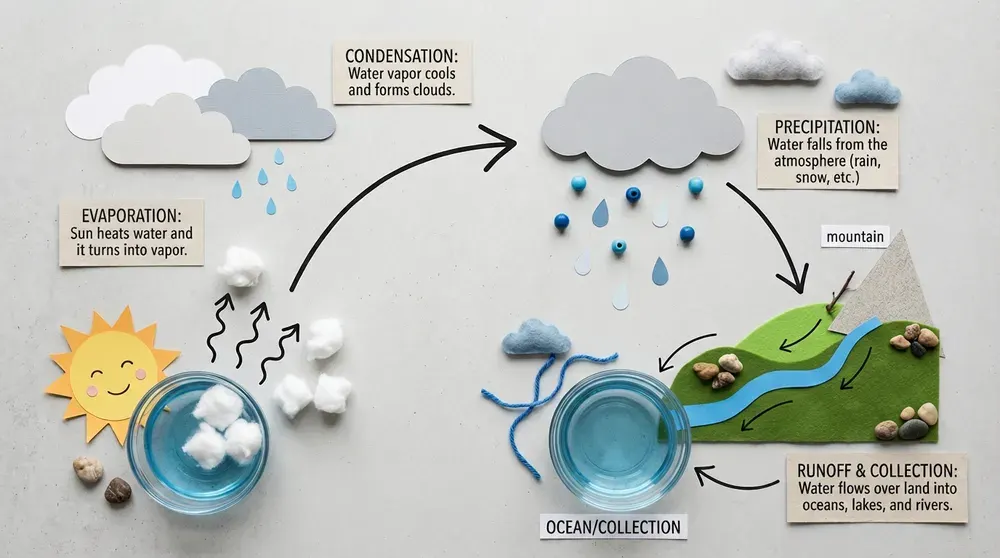
Official Nano Banana 2 examples from Google, including the infographic below. These illustrate model capabilities; your results will vary. View Google’s examples
Generate a starting point, then refine the parts that matter to your project.
Begin with a prompt alone, or add up to five reference images. Explain which subjects to use, what to change and which details to preserve.
Turn an idea into a diagram or infographic concept with labels and an intentional layout. Review the information as well as the artwork before sharing.
The tool shows the credits for your selected settings before generation. Change the resolution or references to review the updated quote.
Your result appears on this page. Open Image History to inspect earlier work, download an output or use it as a reference for another image.
Bring a clear brief and use references when the details need to carry through.
Place a product in a studio setup or a new environment. Specify materials, lighting and camera angle, then review the product details in the output.
Try a campaign visual, cover or promotional concept. Guide the palette, headline and framing for the channel you have in mind.
Explore a labeled illustration or a poster for your idea. Give the exact text and describe where each part should sit.
Carry reference characters into a sequence of scenes. Reuse your inputs to explore a different action, outfit or setting.
Start with an idea. Refine it in the same workspace.
Write what you want to create. For an edit, add your reference images and explain what should change and what should stay.
Select a resolution and aspect ratio, sign in and review the credit quote. Select Generate to start your image.
Inspect and download your result. Choose Image to Image in a history item’s details to start from that image, or reuse the current result’s inputs to try another version.
Workflow illustrations with example inputs and results. Options vary by model.
Nano Banana 2 is Google’s Gemini 3.1 Flash Image model for image generation and editing. On Paevon AI, you can generate from text or add reference images and describe the changes you want.
This page uses Nano Banana 2. Nano Banana 2.1 and Nano Banana Pro are separate models. The tool stays on Nano Banana 2 rather than switching models automatically.
No. A text prompt is enough to start. For image editing or reference-based compositions, this page supports up to 5 JPEG, PNG or WebP images, up to 20 MB each.
Choose 1K, 2K or 4K output and one of the aspect ratios shown in the panel, including square, portrait and widescreen.
The panel shows a quote for your current settings before generation. Credits are reserved when the task starts, used when the results are saved, and returned if the task is confirmed to have failed.
After you sign in, results and Image History appear beside the tool. A history item opens its details without changing your inputs; choose Image to Image to use that output as a reference. Reuse these inputs beneath the current result restores that task’s prompt and settings.
The five demonstration images on this landing page come from Google’s official Nano Banana 2 announcement, linked above. They show model capabilities rather than results from your account.