AI Christmas Photo Generator
Turn an ordinary photo into a Christmas picture — a Santa portrait, a snow globe scene, a fireplace at home, or a holiday card for the whole family. Upload a photo, describe the look you want, and Paevon renders it in seconds. Faces stay recognizable, backgrounds stay clean, and every result is ready to download at print resolution.
Upload a photo and get a Christmas picture
Start from a picture you already have. A phone photo with even light and a clear, front-facing subject works best — one person, a couple, a family group, or a pet. You can also skip the upload and describe the scene from scratch; uploading is what keeps the result personal.
Choose the holiday look you want
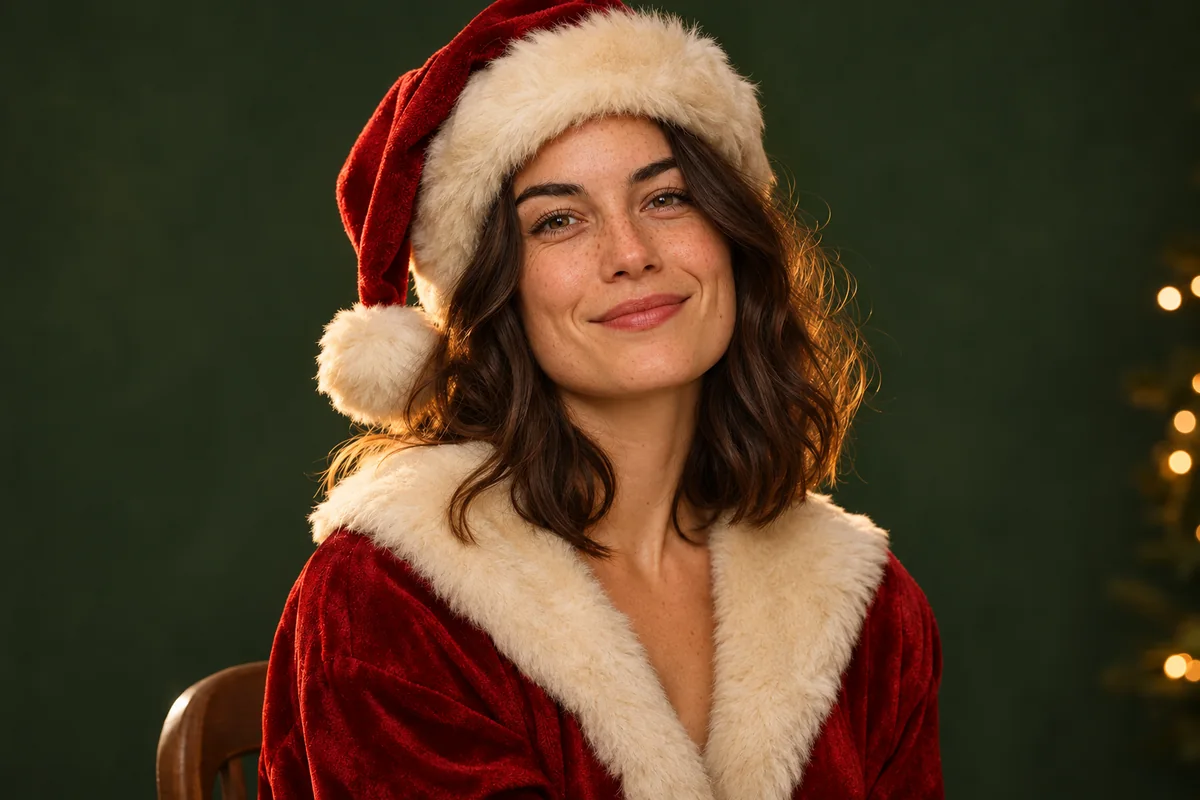
Santa portrait
Put the person in the photo in a traditional red Santa suit and hat, seated in a warm studio with soft rim light, keep the face and expression unchanged.
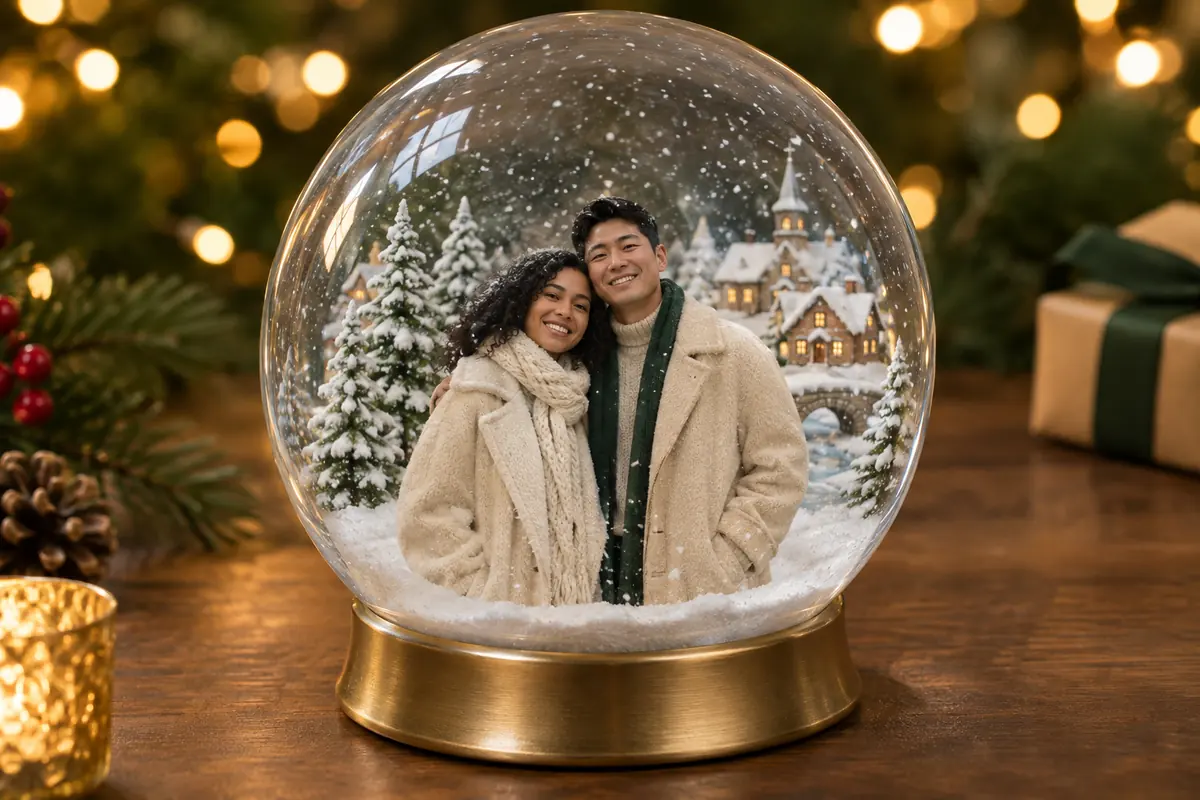
Snow globe and winter scenes
Place the couple from the photo inside a glass snow globe on a wooden table, miniature village and pine trees behind them, soft snowfall, warm bokeh lights in the background.
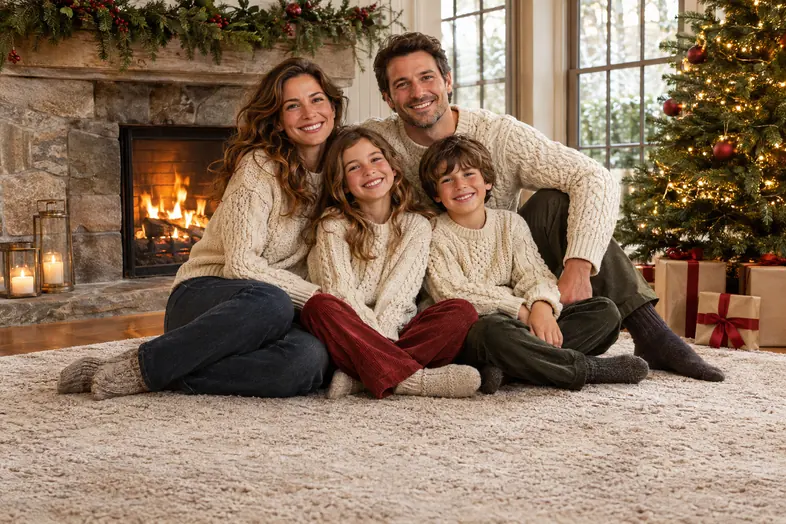
Family holiday card
Turn this family photo into a cozy holiday card scene by a fireplace, matching knit sweaters, warm golden light, space for a greeting at the bottom.
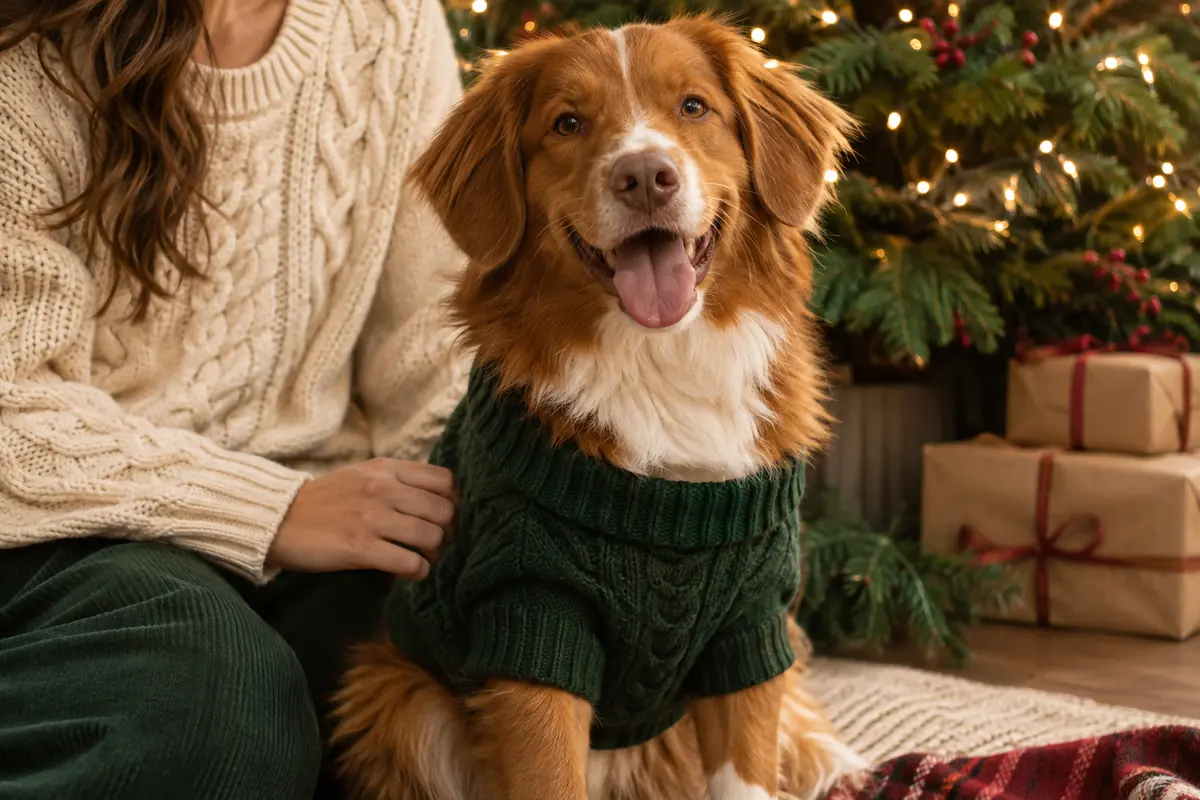
Pets and matching sweaters
Keep the dog exactly as in the photo, add a small green knit sweater, sitting beside the person by a Christmas tree with string lights.
Creative illustrations, not verified generation results.
Christmas photo ideas by scene
Choose a moment to capture, then describe the setting, light and people involved in your Christmas picture.
At home
- Gather beneath the Christmas tree in soft morning robes, with unopened presents, sleepy smiles and pale daylight coming through the curtains.
- Read a handwritten letter beside the fireplace, with knitted socks, a steaming mug and candlelight falling across your face.
- Bake star shaped cookies in the kitchen, with flour on the counter, rolled dough and warm oven light behind you.
Couples
- Stand together inside a snow globe, holding hands beneath falling snow while tiny illuminated houses frame a quiet village square.
- Walk down a winter street at night, sharing a scarf beneath shop window lights reflected in the freshly fallen snow.
- Frame a close view of a gift exchange, with a ribboned box between you and both smiling faces visible above it.
Kids & family
- Mark a baby’s first Christmas on a soft blanket beside the tree, with a favorite toy and parents sitting close.
- Line up the family in matching patterned sweaters on the stairs, with relaxed expressions and a garland winding along the banister.
- Bring four generations together around the grandparents’ armchairs, with older relatives seated and children gathered naturally at their sides.
Pets
- Picture your pet wearing a tiny festive hat, looking toward the camera beside a single ornament against a softly lit background.
- Sit beside your pet at the same height for a greeting card portrait, leaving an uncluttered area for a message later.
- Show a curious cat peeking between wrapped presents, with curled ribbon nearby and its familiar eyes and coat markings clearly visible.
For work and social
- Pose at the office in an outrageous Christmas sweater, with a tidy desk, paper decorations and a playful expression.
- Arrange the team in a relaxed row for a company holiday card, with simple greenery and clear space for the greeting.
- Create a vertical Instagram Story portrait beneath hanging lights, keeping your face centered and room above for a festive caption.
From AI picture to a printed card
Pick your finished format before generating, then use a layout editor to crop the image and add your greeting.
| Finished format | Generate at | Prepare for export |
|---|---|---|
| 5 × 7 in portrait card | 2:3 or 4:5 | Crop to the printer’s exact 5:7 template. |
| 5 × 5 in square card | 1:1 | Keep the square composition; allow for bleed. |
| 7 × 5 in landscape card | 3:2 | Crop to 7:5 without cutting off faces. |
| Square social post | 1:1 | Export at 1080 × 1080 px. |
| Instagram Story | 9:16 | Export at 1080 × 1920 px. |
| Landscape social image | 16:9 | Crop slightly to 1200 × 628 px. |
- Check the pixels
- Choose 4K for print; 2K is usually enough for social. A 5 × 7 in image at 300 ppi needs 1500 × 2100 px after cropping, about 3.2 megapixels. A 12 megapixel source offers cropping room, but is not required.
- Leave room for trimming
- Extend the background roughly 3 mm beyond every trimmed edge, following your printer’s template. Keep faces and greetings safely inside the cut line, separate from this bleed area.
- Add the words afterwards
- Generate the picture without text: AI letters can be garbled or misspelled. Overlay your greeting in Canva or another layout tool, where you control spelling, font and placement.
- Preview before ordering
- Check the final crop, hands and faces at full size, then proofread names and greetings before sending the file to print.
What makes a good photo to upload
A clear reference gives the generator more useful detail about the person or pet you want to keep recognizable.
| Do this | Avoid this |
|---|---|
| Use soft, even daylight so both sides of the face are visible. | Deep shadows, strong backlighting or flash that washes out skin. |
| Choose a sharp photo with the subject facing the camera. | Side profiles, sunglasses or hair hiding important facial features. |
| For a solo portrait, let the face fill at least a third of the frame. | Distant faces that become tiny when you zoom in. |
| Upload the original image with natural skin tones. | Heavy beauty or color filters, which can distort skin color. |
| Check that everyone in a group photo is sharp and unobstructed. | Using a group shot where only the nearest person is clear. |
| Try one clear photo per person for more distinct identity references. | Relying on a crowded group photo when individual portraits are available. |
| Try an older photo, explaining its low resolution in your prompt. | Expecting missing facial detail to be recovered accurately. |
| Leave unclear children or pets out of the group attempt; try separate portraits with clearer references. | Forcing a blurred or moving subject into a complex family scene. |
For multiple uploads, identify everyone in the prompt: “Alex is in photo 1; Sam is in photo 2.” Describe the changes you want for each person.
Why choose Paevon for your Christmas photos?
Start with what you have
Bring a favorite photo or describe a scene from scratch. Add the details that matter, from your family’s outfits to your pet’s markings.
A festive look for everyone
Choose a Santa portrait, a snow globe, a family card or a pet photo. Use the examples as a starting point, then make the scene your own.
Create, review and keep
Choose your ratio and resolution, check the credit quote, then review your pictures in the same workspace. Download your favorites or try another version.
Create a Christmas picture in three steps
Upload your photo
JPEG, PNG or WebP, up to 20 MB each. One clear photo per person, or a single group shot.
Describe the scene
Say what should change and what must stay («keep the faces and the dog's white markings»). Choose your resolution and ratio, and check the credit quote before generating.
Review and download
Open the result, check hands, text and fine edges, then download or reuse the prompt and references for another version.
Prompts that work for Christmas photos
A family of four in matching cream knit sweaters standing in front of a Christmas tree with warm string lights, soft window snow behind them, natural skin tones, editorial holiday card photography, 4:5.
A woman from the photo as Mrs. Claus in a deep green velvet dress, seated in a wood-panelled room with a cup of cocoa, candlelight, shallow depth of field, portrait 1:1.
The cat from the photo wearing a tiny Santa hat beside a plate of cookies and a glass of milk, cozy kitchen at night, warm practical lighting, 16:9.
Fix the common problems
Inspect the result before sharing or printing, then change one thing at a time so you can compare versions.
The faces do not look like us
- Likely cause
- The reference is unclear or the requested changes overwhelm it.
- Try this
- Use a clearer frontal photo and add “keep the faces unchanged”.
Extra fingers or limbs
- Likely cause
- Crowded scenes and intertwined poses make anatomy harder.
- Try this
- Reduce the number of people and use simple poses with separated hands.
The background looks cluttered
- Likely cause
- Too many people, props or competing decorations fill the scene.
- Try this
- Remove extra people and objects, then request a “clean background”.
Garbled writing appears
- Likely cause
- The prompt asks the image generator to draw words.
- Try this
- Remove any wording in quotation marks; add the greeting in a layout editor.
My pet’s markings changed
- Likely cause
- Distinctive coat details were unclear or lost during generation.
- Try this
- Use a clearer reference and specify “keep the white chest patch”.
The image looks soft
- Likely cause
- The output is too small for the intended crop or print.
- Try this
- Generate at 4K and inspect at full size; a clearer reference may also help.
Christmas photo stories
Illustrative reviews with fictional names and portraits.
“I wanted a cozy family card without planning another photo shoot. Starting with our own photo and describing the sweaters and fireplace gave me a lovely direction to explore.”

Emily Carter
Family Christmas card
“The snow globe idea was my favorite. I could try a winter scene with our couple photo, adjust the details and compare versions before picking one to send to family.”

Daniel Kim
Couple’s snow globe portrait
“Our dog had to be on the Christmas card. A green sweater, a tree and his little white chest patch were the details I wanted. The pet style was a fun place to start.”

Sofia Martinez
Pet Christmas portrait
AI Christmas Photo Generator FAQ
Yes — you can generate Christmas pictures with free credits. Free exports include a watermark, and private, watermark-free downloads come with eligible paid plans. The credit cost is shown before you generate.
No. You can describe a Christmas scene from scratch. Uploading is what carries your own faces, pets and outfits into the result.
Yes. It runs in the browser on desktop and mobile — no app, no plugin.
Reference photos guide the model, so features usually stay close. Use a sharp, front-facing photo with even light and say who is who in the prompt; regenerate if a face drifts.
Yes. Upload one group photo (or one photo per person) and name them; pets work the same way — add «keep the dog's white markings» to protect details.
Yes. Choose 4K and a ratio close to your card, then crop in a layout editor. A 5 × 7 in print at 300 ppi needs at least 1500 × 2100 px after cropping. Check faces, hands, bleed and greetings before ordering.
Each generation uses credits, quoted in the panel for the chosen model, resolution and ratio before you submit. A confirmed failed generation returns its reserved credits.
10 days on free accounts and 180 days on eligible paid plans, counted from upload or creation — download anything you want to keep.
Yes, nothing is queued by date — but do it early: December is when everyone searches for this, and exports you already downloaded are yours to keep.