Turn Your Selfie Into a Sheru Bhai Photo
Take the seat across from a white lion at a chai shop, or pose with him on a rooftop after sunset. Paevon turns one portrait into a Sheru Bhai Photo with the fictional character beside you. Pick a setting and shape for the picture, then see what the AI makes.
Three steps to your Sheru Bhai Photo
- 1
Choose one portrait
Start with a JPEG, PNG, or WebP up to 20 MiB. A recent phone photo with your eyes in focus works well. For a Sheru Bhai Photo that feels like you, choose a source where your hairstyle and expression are easy to see. Leave a little space around your head and shoulders.
- 2
Decide where to meet
Choose the courtyard for an outdoor portrait, the tea shop for a seated picture, or the rooftop for a city backdrop. Set the aspect ratio for where you plan to use your Sheru Bhai Photo. Review Public visibility before generating, especially when you intend to keep the result in your account.
- 3
Review the quote and download
Sign in and check the credit quote after the portrait uploads. Generate one image and follow its status in the workspace. Once your Sheru Bhai Photo is ready, open the preview and look closely at both faces and the edges of the crop. Download the version you want to keep.
The idea behind a Sheru Bhai Photo
Sheru Bhai has an ivory mane, dark glasses, a formal suit, and a gold chain. The joke is how comfortably this fictional character fits into an ordinary afternoon. A Sheru Bhai Photo might catch him waiting for tea to cool or standing next to you with the easy posture of someone who has known you for years.
The generator builds the encounter around your portrait. It uses the person in that image as a guide for the face, hair, and skin tone, then draws the two companions in a shared light. The setting, expressions, and small clothing details can change. Think of the finished picture as an invented scene starring you.
Sheru Bhai Photo prompt ideas for your own edits
Paevon builds the scene instructions from your choices. If you want to direct a Sheru Bhai Photo in a separate editor that accepts a portrait and a written prompt, use these ideas as starting points. Describe what each person is doing and where the light comes from. Attach a portrait you have permission to use.
A quiet corner of the courtyard
Build a Sheru Bhai Photo around my uploaded portrait. Put me under the shade of a sandstone arch with a suited white lion beside me. Keep my face recognizable. Let reflected light from the courtyard reach both faces, with a second arch further back for depth. Frame us from the waist up with room above the lion’s mane.
A chai table during a downpour
Use my portrait for the person in this Sheru Bhai Photo. Seat me and a white lion with dark glasses at a table by a fogged window. Put a glass of chai near each of us and leave our hands resting naturally. Let the rain soften the street outside while the faces stay readable.
The view from a city terrace
Make a Sheru Bhai Photo using the person from my reference. Place us by a low rooftop wall, with the lion in an ivory suit and the first lights coming on in distant buildings. Use a lantern just out of frame to light us from the same side. Keep the skyline low enough to leave both silhouettes clear.
Three scenes for your Sheru Bhai Photo
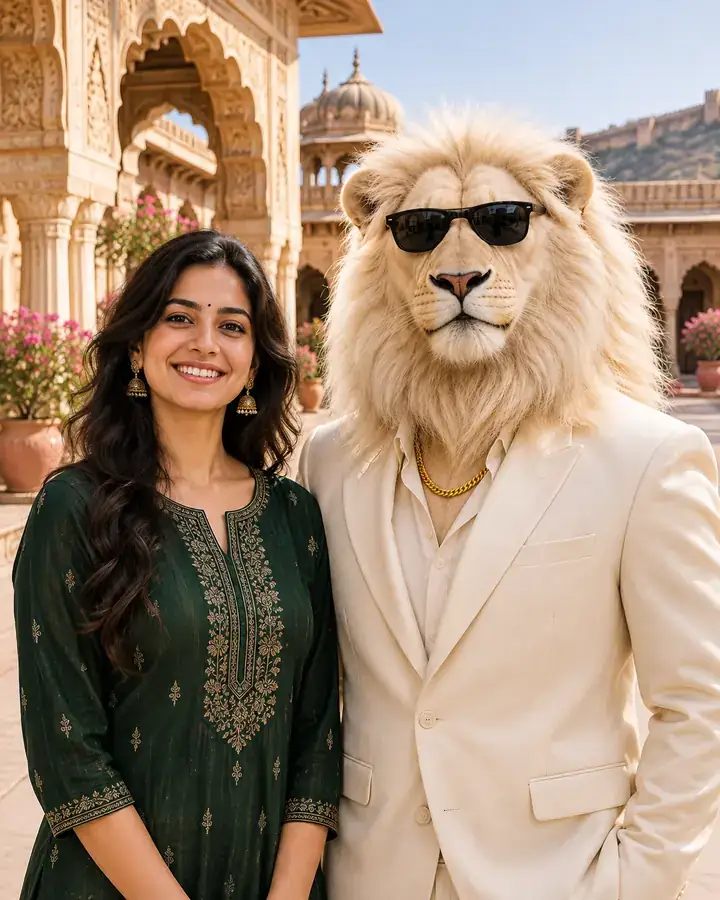
Palace courtyard
Choose the courtyard for a Sheru Bhai Photo with warm stone and an outdoor, travel portrait feel. The carved arches give the background depth while the two companions stand at eye level. A source portrait taken in soft daylight suits this scene.
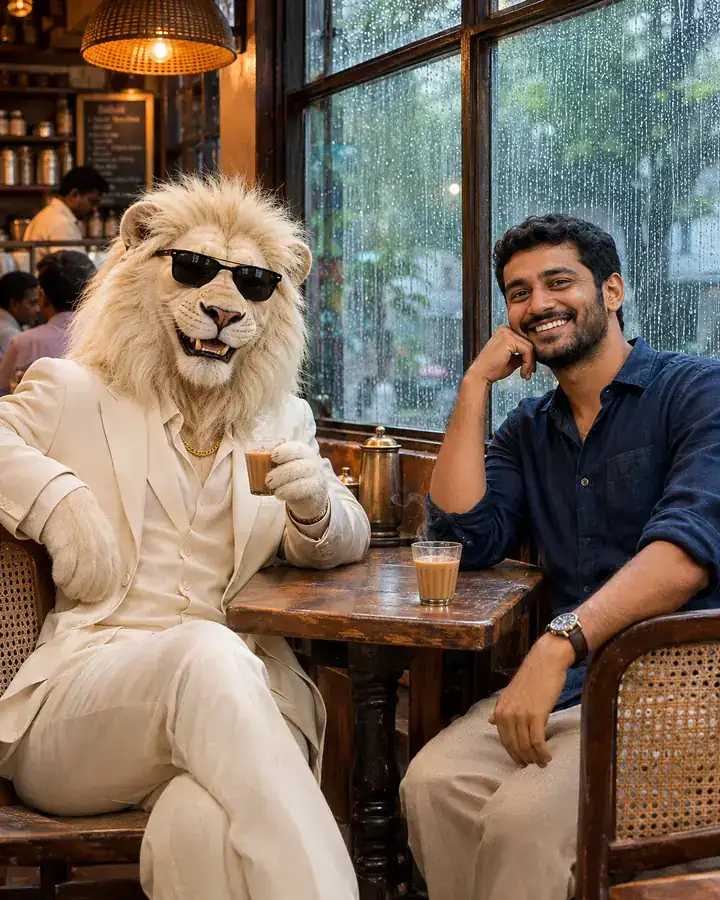
Monsoon chai
Two glasses on a wooden table tell the story of this Sheru Bhai Photo. The companion sits opposite the lion, with blue daylight coming through the rainy glass and warmer light inside. This is the coziest choice for a portrait with a relaxed expression.
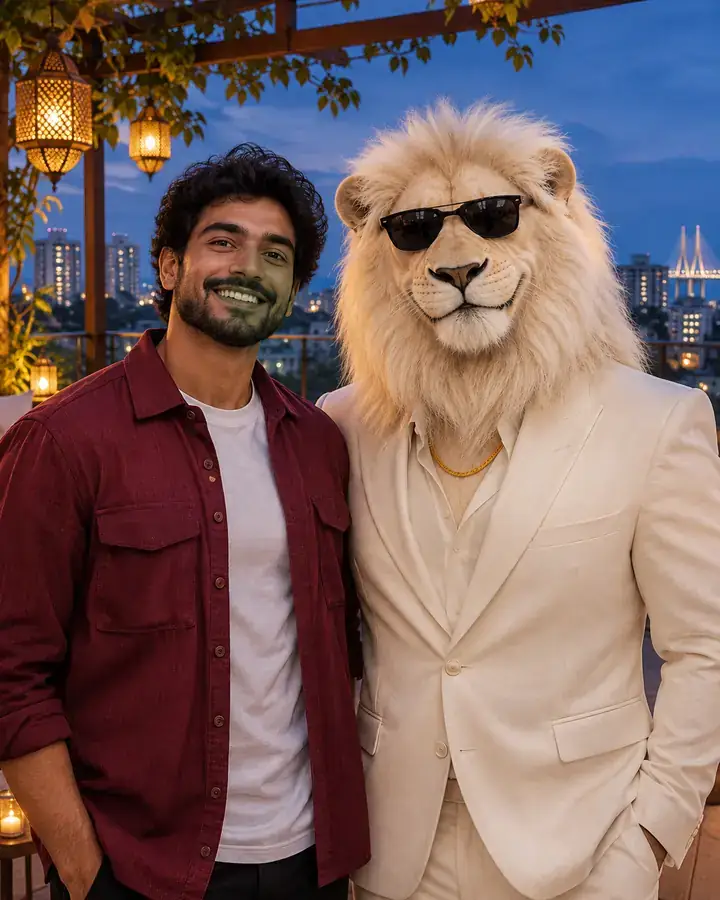
Rooftop at dusk
A rooftop Sheru Bhai Photo brings the two of you up against the evening skyline. Amber lanterns and lit windows set the mood. Choose this scene if you want an image that still feels like a portrait when the city fills the frame behind you.
These AI illustrations show the available settings. Your result will vary with your portrait and crop.
Frame a Sheru Bhai Photo for where it will go
4:5 for a portrait post
Go with the default 4:5 if you want your Sheru Bhai Photo to read as a portrait in a feed. It gives the courtyard arches or tea table some breathing room while keeping attention on the two faces. Check the crop in your posting app before sharing it.
9:16 for a story or phone background
A tall Sheru Bhai Photo gives a rooftop skyline more room above the two companions. If you want to add a caption or use the image as a lock screen, preview where stickers, buttons, or your clock will sit. Keep the important details clear of those areas.
1:1 for a chat or profile image
A square Sheru Bhai Photo is easy to preview in a group chat. The face and mane should still read when the image is small. For a profile avatar, check the circular preview in your app so you can see whether both faces still fit inside it.
What a Sheru Bhai Photo costs in Paevon
The generate button shows the credit quote once your portrait has uploaded and the settings are ready. Each request makes one Sheru Bhai Photo. If the quote changes, review the updated amount before submitting again. Credits are reserved during processing and returned if Paevon confirms that the generation failed.
View Paevon pricingQuestions about Sheru Bhai Photo
Your uploaded portrait can be a real photograph. The meeting with the suited white lion is an AI composite. If you share a Sheru Bhai Photo somewhere people might assume it documents a real event, a short caption about the AI edit gives viewers the context.
This tool uses one person as the companion. Crop a group shot to a single person before uploading, or pick a solo portrait if the crop would leave someone else’s face visible. The generator adds the lion as the second subject.
Try a different upload before spending credits on a Sheru Bhai Photo. Look for a sharp image where both eyes are easy to make out and the shadow under your hair or hat is light enough to see your features. A recent picture by a bright window is a good place to start.
Choose a preset scene and let Paevon handle the instructions. Use the written examples above to try your own framing or a variation in an editor that accepts text prompts. In Paevon, changing the scene or the aspect ratio is how you direct the picture.
The AI creates a new pose and lighting for the shared scene. Inspect your Sheru Bhai Photo for a familiar expression, skin tone, and hairline, as well as odd details around glasses or hands. If the likeness feels off, a sharper source at eye level may give the editor more to work with.
Public visibility is on by default. With eligible paid access, such as a qualifying Paevon plan or credit pack, you can switch it off before submitting. Check the toggle for each new Sheru Bhai Photo, including when you reuse the settings from an older creation.
Yes. Keep the portrait and scene, select the size you want, and review the quote for that request. A new Sheru Bhai Photo is generated for the new aspect ratio, so the pose and details may shift. For an exact copy of a pose, download the result you liked and crop that file in your own editor.
Check the status in the workspace or return to the task in Image History. Paevon returns reserved credits after it confirms a failure. A long wait can still be part of a running request. Check the status before starting another Sheru Bhai Photo, since a new generation has its own quote.
Open the result in the tool, Image History, or My Creations while it remains available in your account. Save a local copy of any Sheru Bhai Photo you want to keep beyond Paevon’s storage period. Use Reuse when you want to bring the portrait and settings from a previous task back into the form.
Start your Sheru Bhai Photo with a portrait
Find a clear picture you already like. For your first Sheru Bhai Photo, choose the scene that feels most like somewhere you would spend an afternoon. Pick a crop, preview the finished image, and save the one you would send to a friend.